![Beeye (Text).svg]](https://support.mybeeye.com/hubfs/Beeye%20(Text).svg)
Importing tasks from a template helps save time and ensures consistency across your missions. Here’s how to do it step by step:
-
Using the search function:
Use the search function (magnifying glass icon) to find the project where you want to import one or more tasks, and open the project file.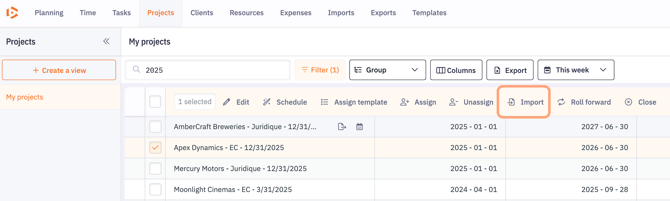
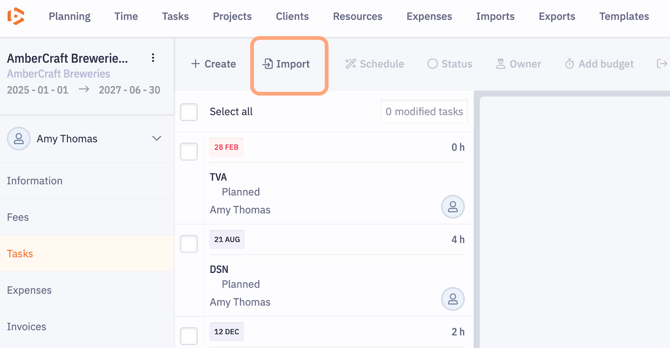
- In the Tasks section, import them directly from the chosen template.
-
Click the Import button to start the process.
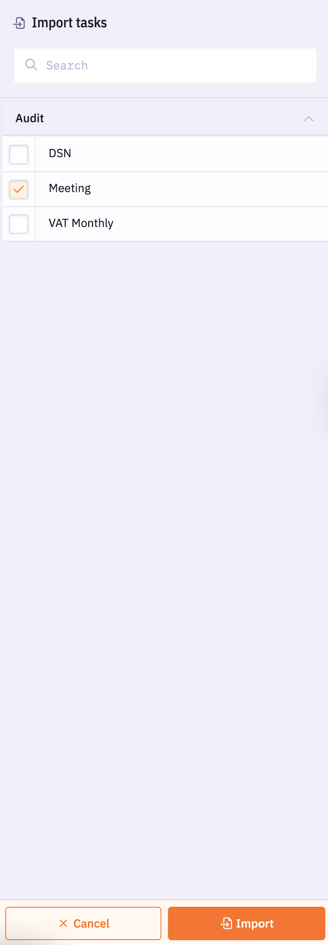
In the right-hand panel, access the relevant template and select the task(s) to import.
Finally, click Import at the bottom of the panel to confirm the operation.
"No Scenario Available" Message During Import
During import, you may receive the message "No possible scenario ", which prevents the task(s) from being imported.
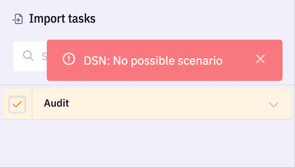
In this case, you should:
-
Check if the elements in the deployed scenario filter match the values of the client’s related custom fields.
Once the client information has been adjusted to meet the scenario criteria, you can import the task again.
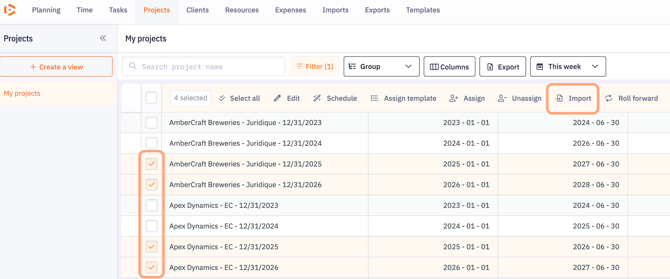
Bulk Import
You can import one or more tasks from a template across multiple projects. This saves time and ensures consistency in how tasks are added.