![Beeye (Text).svg]](https://support.mybeeye.com/hubfs/Beeye%20(Text).svg)
To add notes directly in the Beeye planning, follow these steps:
1. Select the Task: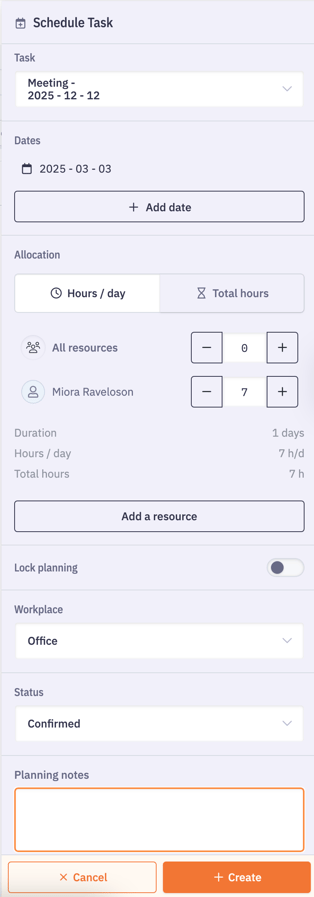
In the planning view, click on the task card where you want to add a specific note or comment.
2. Add Notes:
The task details panel will open on the right side of the screen, where you’ll find the Planning Notes field available for input.
3. Enter the Note:
Type your note in the field. You can include useful information, updates on the task’s progress, or any other relevant comments for the team.
4. Save:
Once you have entered the note, click the Save button to add it to the task. The information will now be visible to all users who have access to this task in the planning.
5. View Notes:
Added notes can be viewed by team members by clicking on the relevant task card. This allows for effective communication and real-time tracking of observations or changes made to tasks.
Tip: You can customize the display of your planning cards and choose to show the note to make it more visible.