![Beeye (Text).svg]](https://support.mybeeye.com/hubfs/Beeye%20(Text).svg)
This guide explains the three available methods to create a task in Beeye.
-
Creating a task from a template
-
Creating a task directly within a project
-
Creating a task by importing it from a template
1. Creating a task from a template
This method allows you to create tasks based on a predefined template. All parameters can be completed or adjusted.
Steps
-
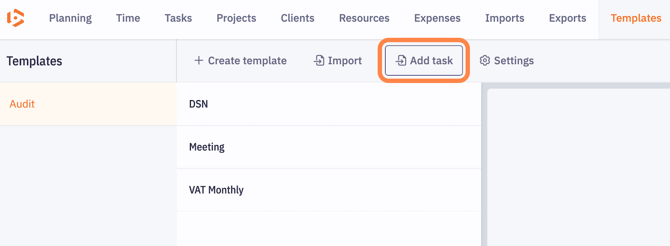
Go to the Templates menu.
-
Select the template.
-
Click Add a task.
-
Fill in the required information (depending on the template):
-
Task name
-
Scenario and filters to apply
-
Assigned manager / responsible person
-
Budget parameters
-
Start and end dates
-
Due date
-
Recurrence
-
Automated planning rules, etc.
-
When you apply a template to a project, all its parameters are automatically applied.
2. Creating a task directly within a project
This method allows you to create a task independently of any template. The task is fully customized for the current project.
Steps
-
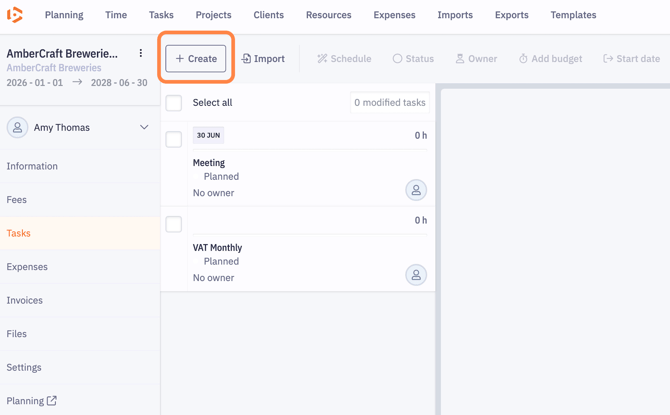
Open the relevant project.
-
Go to the Tasks section.
-
Click Create.
-
Manually fill in the required information:
-
Task name
-
Scenario and filters to apply
-
Assigned manager / responsible person
-
Budget parameters
-
Start and end dates
-
Due date
-
Recurrence
-
Automated planning rules, etc.
-
-
The task will not be included in other projects created from the template.
-
Recommended for specific or exceptional needs.
3. Creating a task by importing from a template
This method allows you to import one or more tasks from a template directly into a project. All template parameters are automatically applied.
Steps
-
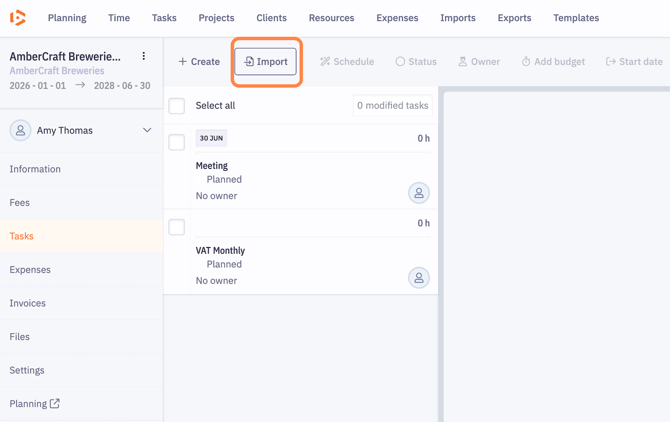
Open the relevant project.
-
Go to the Tasks section.
-
Click Import.
-
Select the template.
-
Choose the task(s) to import.
When applied, the template parameters are automatically applied and consider the settings of the associated client account.